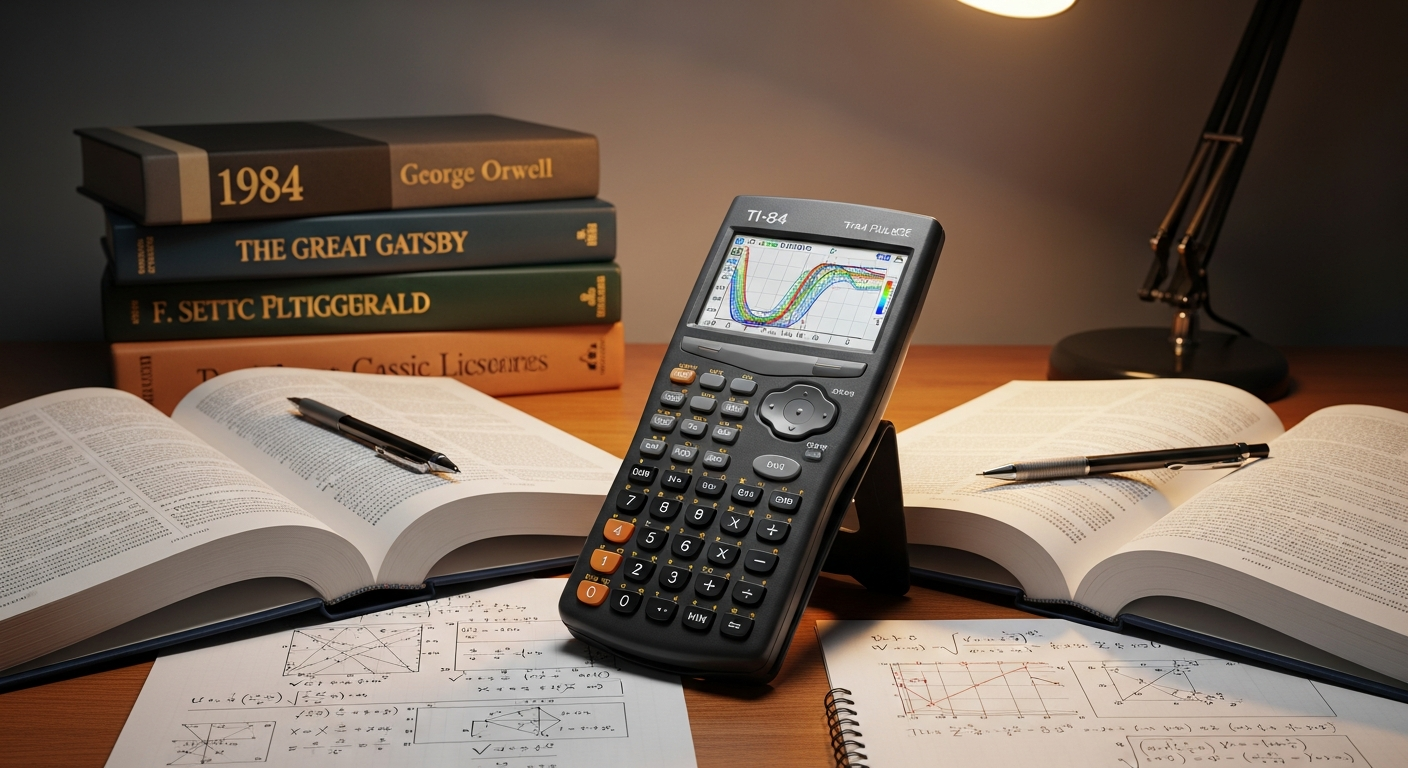
The TI-84 Calculator is more than just a math tool—it’s a powerful companion for solving complex equations, graphing functions, and analyzing data. Whether you’re a student, engineer, or data analyst, understanding how to use the TI-84 can make calculations faster, easier, and more accurate. This in-depth guide will help you unlock its full potential.
What Makes the TI-84 Calculator So Popular?
The TI-84 calculator stands out because of its speed, versatility, and easy-to-use interface. It supports graphing, statistics, and programming—all in one device. Users can quickly plot graphs, solve systems, and calculate probabilities. Plus, its built-in functions make handling advanced math topics effortless.
Moreover, its user-friendly layout allows beginners to learn quickly. Many schools and exams even approve the TI-84, making it an ideal choice for students and educators worldwide.
Understanding the TI-84 Calculator Interface
At first glance, the TI-84 calculator may look complicated, but its design is intuitive. Each key has multiple functions that save time and space. The display clearly shows equations, graphs, and data in real-time.
Navigating the menus is simple. By using the arrow keys, users can move between modes, settings, and graph screens. This efficiency helps students focus more on problem-solving rather than searching for commands.
How to Use the TI-84 Calculator for Graphing
Graphing is one of the most powerful features of the TI-84 calculator. With it, users can visualize equations and identify key mathematical properties. To graph an equation, just press the “Y=” button, enter the function, and hit “GRAPH.”
The calculator automatically scales the graph to fit the screen. You can adjust the window size for better clarity or zoom in on specific areas. By using the “TRACE” function, you can view points and intersections directly on the curve.
Performing Statistical Calculations with the TI-84 Calculator
Statistics becomes simpler when using the TI-84 calculator. It can compute mean, median, standard deviation, and regression analysis. Start by entering your data in the “STAT” menu, then choose “CALC” to run the desired statistical operation.
Transitioning between datasets is smooth, allowing multiple analyses at once. Because of this, the TI-84 is commonly used in economics, psychology, and scientific research.
Solving Algebraic Equations Easily
The TI-84 calculator allows users to solve linear and quadratic equations without manual work. Access the “MATH” menu and select the equation solver. After entering coefficients, the calculator instantly provides the result.
This feature saves valuable time, especially during tests or homework sessions. It also minimizes human error while maintaining accuracy across multiple steps.
Programming on the TI-84 Calculator
Few users realize that the TI-84 calculator supports basic programming. By writing short programs, repetitive tasks can be automated. This includes creating custom formulas or graphing sequences.
To begin, navigate to the “PRGM” menu. From there, you can write, edit, and run your own code. With practice, users can turn the calculator into a personal assistant for math and science.
Using the TI-84 Calculator for Trigonometry
Trigonometric problems become easier with the TI-84 calculator. Functions like sine, cosine, and tangent are accessible through dedicated keys. Users can switch between degrees and radians quickly, ensuring accurate results.
This flexibility helps students understand how angles, sides, and ratios relate in geometry and physics. By using graphing features, trigonometric waves can be visualized in seconds.
Tips to Improve Accuracy and Speed
Mastering shortcuts enhances efficiency with the TI-84 calculator. Use memory functions to store common equations. Press “2nd” + “ENTER” to repeat previous commands instantly. Adjusting display settings improves readability during long study sessions.
Keeping your calculator organized with named lists also speeds up data entry. With consistent use, anyone can perform calculations confidently and efficiently.
Troubleshooting Common TI-84 Calculator Issues
Sometimes, users face minor problems like frozen screens or incorrect modes. Don’t worry—resetting the TI-84 calculator usually fixes these. Hold “2nd” + “+” + “7” to access reset options. Choose between RAM or archive reset depending on your need.
If the display becomes unclear, adjust brightness or contrast using “2nd” + “Up/Down.” Regular maintenance ensures smooth and reliable performance.
Upgrading Your TI-84 Calculator for Modern Use
Technology evolves fast, and the TI-84 calculator keeps up with it. Modern versions offer USB connectivity, allowing software updates and data transfer. Students can download new applications to extend functionality.
By syncing with computers, users can save graphs, programs, and data for future use. These updates make the TI-84 relevant even in today’s digital classrooms.
Why the TI-84 Calculator Remains a Trusted Tool
Unlike many mobile apps, the TI-84 calculator is allowed in official exams. Its reliability, accuracy, and offline features make it a top pick for education. Furthermore, it builds real problem-solving skills that digital shortcuts often miss.
Over time, this calculator has become a symbol of precision and learning. Its lasting popularity proves its value in academic and professional environments alike.
Conclusion:
To sum up, the TI-84 calculator is an essential learning companion that simplifies complex math, boosts accuracy, and enhances understanding. From graphing to programming, it offers everything needed for success.
Start practicing today and explore every feature to build confidence in problem-solving. Once mastered, the TI-84 becomes not just a tool but a gateway to mastering mathematics and beyond.
FAQs
1. What subjects can I use the TI-84 calculator for?
You can use it for algebra, geometry, trigonometry, calculus, and statistics. It’s also great for science and engineering tasks.
2. Is the TI-84 calculator allowed in exams?
Yes, it’s approved for most standardized tests, including SAT, ACT, and AP exams.
3. Can I connect the TI-84 calculator to a computer?
Absolutely! Modern versions include USB connectivity for transferring data and software updates.
4. How can I reset my TI-84 calculator safely?
Use “2nd” + “+” + “7” to open the reset menu. Choose RAM reset for minor issues or full reset for a clean start.
5. Does the TI-84 calculator need batteries or charging?
Most models use AAA batteries, while newer ones include rechargeable options for convenience.